Compress image to 100 KB

Get an image at or just under 100 KB with the best quality that fits. Free, and your photo never leaves your device.

Target size
Advanced options
Output format

Processed on your device. Your files are never uploaded.

How to use

  1. Add one or more images: tap "choose files", drag them onto the box, or paste one.
  2. Keep the 100 KB target. Each image is compressed right away.
  3. Check the new sizes, then download each image or all of them as a ZIP file.
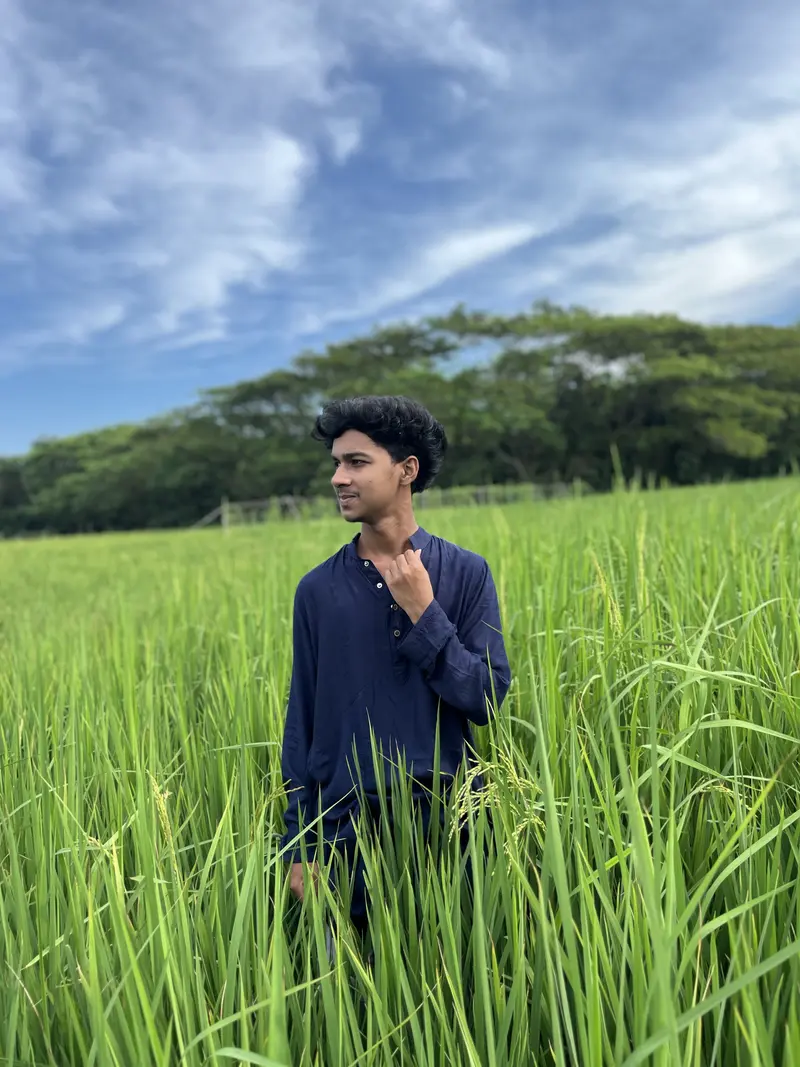
The same photo before compression, 1.1 MB

Original iPhone photo (HEIC): 1.1 MB

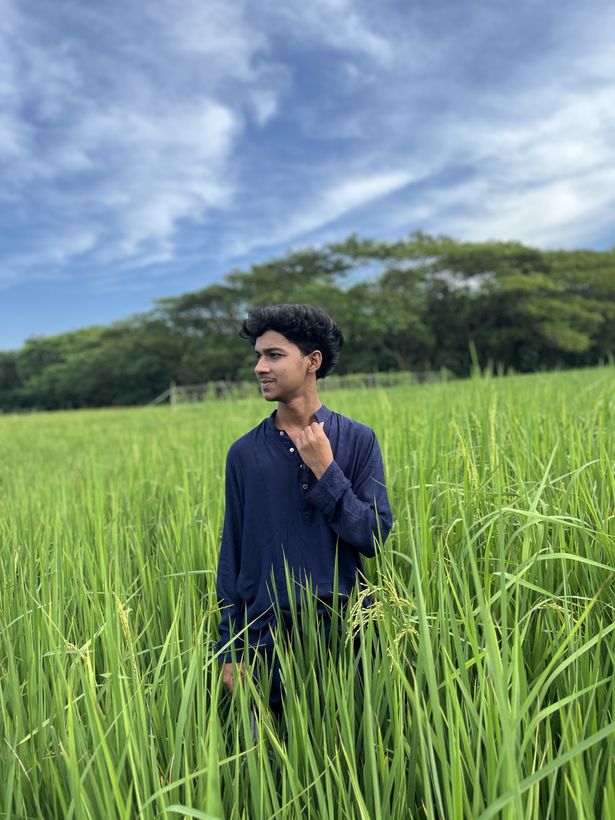
The same photo after compression to 100 KB, 90.5 KB, shown at its real size of 615 × 820 px

Compressed to 100 KB: 90.5 KB, 615 × 820 px

The same iPhone photo before and after compressing it to 100 KB with this tool's settings. The compressed file is 615 × 820 px; it is never shown larger than that.

Compress a JPEG to 100 KB

Most phone photos are JPEGs of 2 to 5 MB. To compress a JPEG to 100 KB, the tool tries different quality levels and picture sizes and keeps the best-looking version that stays under the limit. The result is a new JPEG with hidden details such as location removed. If your file is already under 100 KB, you get it back as it is, only with those hidden details removed.

What 100 KB holds

100 KB is enough for a sharp photo on a phone screen or in a document. This is what our sample photos became:

Photo Result at 100 KB
iPhone, landscape 985×738 px, 84.2 KB
iPhone, portrait, detailed 548×730 px, 87.4 KB
1920×1440 photo 730×548 px, 85.3 KB

Detailed photos (trees, crowds, printed text) need more bytes for the same size; simple ones need fewer. If you need the original width and height, tick “Keep the original width and height” under Advanced options and the tool will lower the quality instead.

Screenshots and PNG files vs photos

Screenshots, charts and documents with large flat areas compress well, so they can keep a larger width and height within 100 KB than a photo can. Photos need more space, because almost every pixel is slightly different.

PNG files are a special case: PNG never throws detail away, so a photo saved as PNG cannot get much smaller without losing pixels. For photos, keep the output as JPG (the default). For a screenshot that must stay PNG, choose PNG under Advanced options; the tool will make it smaller in width and height if needed and tell you when JPG would do better.

Frequently asked questions

How do I compress a JPEG to 100 KB?

Add the JPEG here with the 100 KB target selected. The tool finds the best quality and pixel size that fit under 100 KB and gives you a new JPEG, usually a little under 100 KB.

Why is my PNG still over 100 KB?

PNG keeps every pixel exactly, so a photo saved as PNG stays large. The tool can only make it smaller in width and height, and suggests switching to JPG when that would shrink it a lot. Choose JPG under Advanced options for photos.

How do I reduce a photo to 100 KB without losing quality?

Some detail is always lost when a multi-megabyte photo becomes 100 KB. The tool keeps the quality clean and makes the picture smaller instead, which looks better than heavy compression at full size. Cropping away what you do not need lets the rest stay larger.

Can I compress several images to 100 KB at once?

Yes. Add up to 20 images at a time. Each one is compressed to 100 KB or less, and "Download all (ZIP)" saves them in one file.